StatCounter Reports Market Share for Browsers and Operating Systems

StatCounter has a thing they call GlobalStats (gs for short) that shows the usage of things like operating systems and browsers as measured by their widgets.

Here are some interesting snapshots (as of Aug 2013). The worldside distribution is in fact different than the USA distribution.

Click “Source” go to their site to customize dates to see updated stats.

Browser Usage

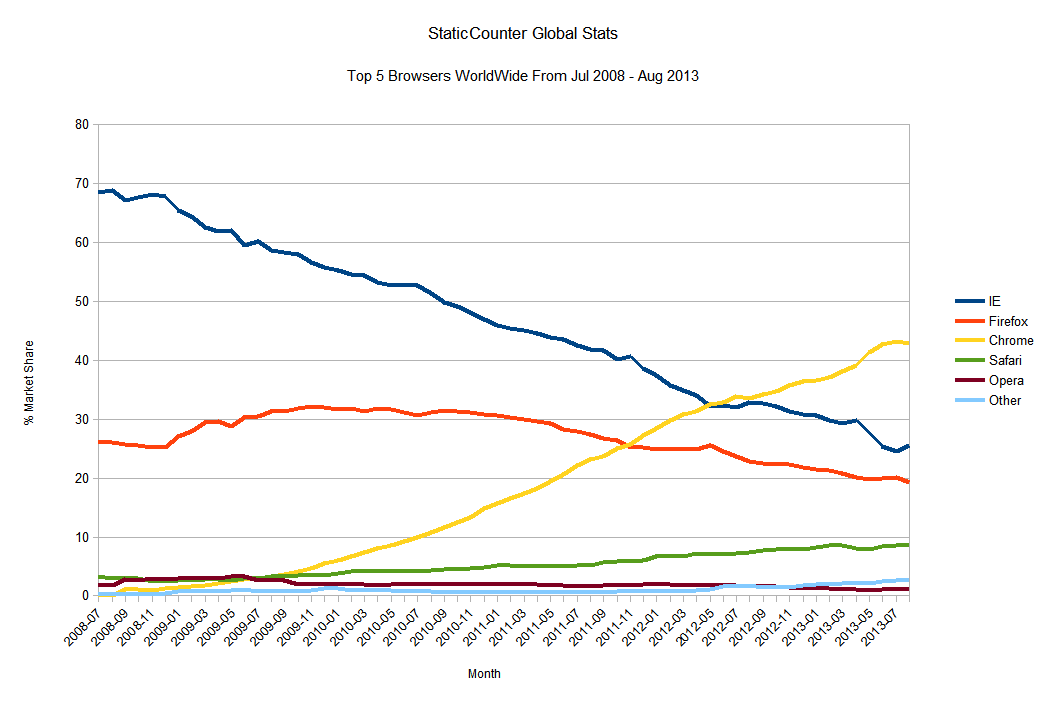
Browser Usage WorldWide

gstatic_browser_2013_08_to_2008_07_worldwide_mine (Source)

Browser Usage in the USA

gstatic_browser_2013_08_to_2008_07_usa_mine (Source)

Operating System Usage

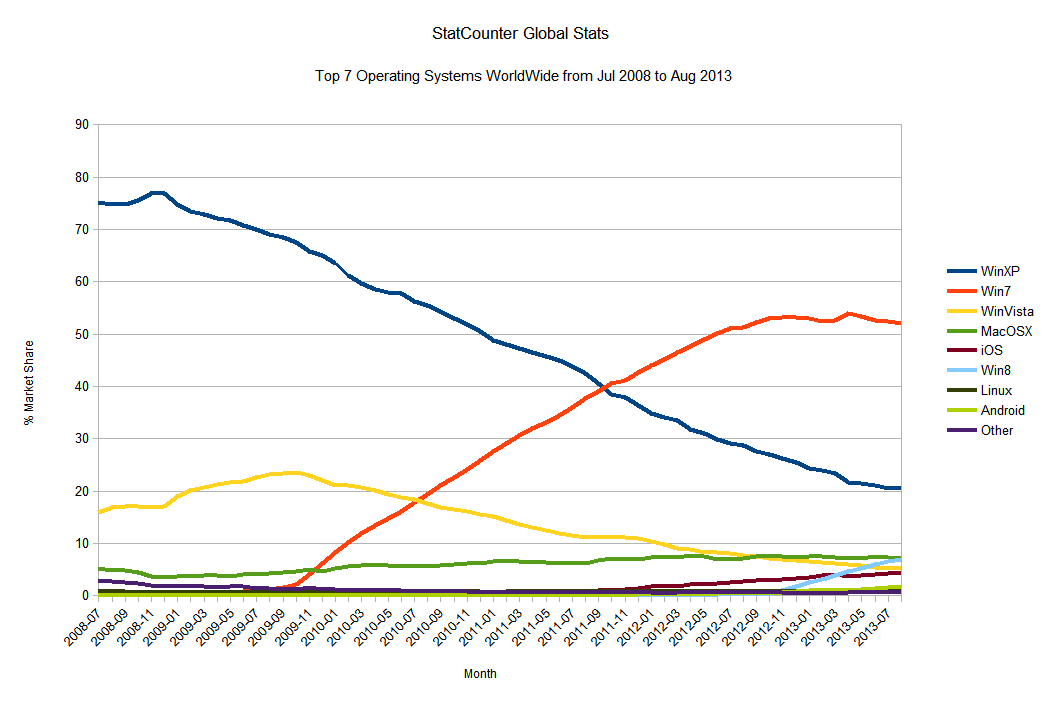
Operating System Usage WorldWide

gstatic_os_2013_08_to_2008_07_worldwide_mine (Source)

Operating System in the USA

gstatic_os_2013_08_to_2008_07_usa_mine (Source)

The best way to get Flash Updates (Hint: DON’T click DOWNLOAD)


We all need flash. It’s a given. Because Adobe (the maker of Flash Player) knows that, they take every opportunity to track you and install their extra programs on your computer.

We dont want any of that.

It used to be an extra program “GetPlus” came along for the ride, but that annoyance seems to have subsided. Now they sometimes sneak in McAfee Scanner. I trust McAfee, but if you already have antivirus, this programs adds little and runs all the time, slowing down your system. And who knows what they’ll put in the future?

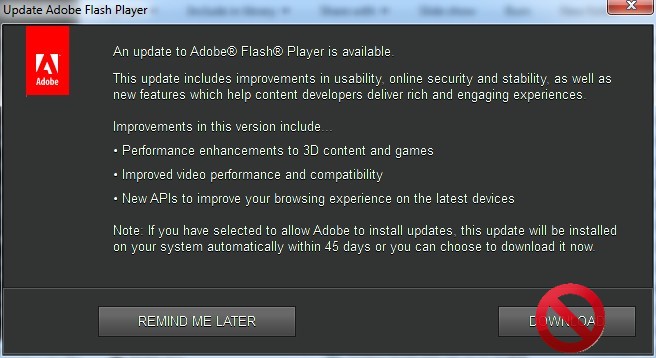
So when you get this window:

flash_update_notification_window_with_stop
[This specific example is for the v16.0.0.235 update]

DON’T click DOWNLOAD

Note: if you dont see this window, it might be because your adobe flash is set to download and install updates automatically. You can change this in the flash entry in control panel (blog post coming soon).

Two ways

1. My personally verified safe files

I plan to keep the following location up to date with the latest download files, selected and verified by me: Montgomery Minds box.com Flash Player file storage. (If that doesnt work try this or this.) That page has hash values and exact files sizes in the description for each file, and in the source.txt file in that folder.

(You can browse all the files i have for download at: Montgomery Minds box.com file storage)

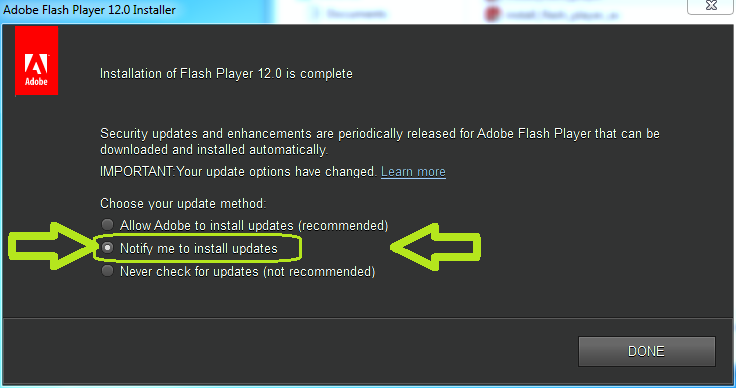
At the end of your install you’ll see that “Allow Adobe to install updates” is checked by default–BAD. That will let them install whatever they want next time. Instead, check “Notify me to install updates” and then check Montgomery Minds box.com Flash Player file storage next time you are notified, and download from there.

install_flash_player_dont_update_automatically_hilit

2. Second-best way

Or, as of 2/16/2015, the next best recommendation is go to the Adobe FlashPlayer FAQ / Flash Player Help / Installation problems (its title keeps changing) and search for something called something like “direct link” or “downloading the installer directly”. It is often in a section dealing with download or installation problems, eg, “Still having problems?” and listed as an alternative to the default installation method. That’s good, because the default installation method is “heavier”, containing as much junk as adobe can put in there. For a while now, the direct link filename has been called something like "install_flash_player.exe" and "install_flash_player_ax.exe" for IE (Internet Explorer). Mouse over the link that looks like the “direct link” and see if the file name is something like that. Note that the filename "install_flashplayer11x32_mssd_aaa_aih.exe" is not a good one.

Also note the size.

The direct link "install_flash_player.exe" today is 17.4MB. That’s big. That’s good.

The “network install” more invasive method "install_flashplayer11x32_mssd_aaa_aih.exe" today is 1.0MB. That’s small. That’s bad. That means it’s really going to contact the adobe website to download the real stuff.

Direct Link – Example URLs

Here’s a direct link accurate as of this writing: http://fpdownload.macromedia.com/pub/flashplayer/latest/help/install_flash_player.exe (at the time it was version 16.0.0.235).

And http://fpdownload.macromedia.com/pub/flashplayer/latest/help/install_flash_player_ax.exe for IE.

And http://fpdownload.macromedia.com/pub/flashplayer/latest/help/install_flash_player_ppapi.exe for Chromium based browsers and Opera

  • (A flash specifically for Chromium based browser and Opera is relatively new, ie, appeared in 2014. The standard Chrome browser however does not use this–it has flash support built-in.)

Check version, Check installation

No matter how you get your files, to check whether your installation is working, or what version you have, or whether you have the latest, try one of these two pages (valid as of 1/3/2014; they keep changing):

If that doesnt work, Google check flash version site:www.adobe.com or validate flash installation site:www.adobe.com, ie only on the adobe.com site to protect yourself from malware, or better yet, DuckDuckGo it eg: https://duckduckgo.com/?q=check%20flash%20version%20validate%20flash%20installation+site:www.adobe.com

References:
“Get Adobe Flash Without GetPlus in Firefox” on techsupportalert.com

“Get Adobe Flash and Reader without GetPlus in Firefox”
and updated “Download the Latest Adobe Flash for Firefox and IE Without Any Extras”

Acronis True Image Home: Supports RAID

Quote of Acronis True Image Home: RAID Support | Knowledge Base.

Knowledge Base

11681: Acronis True Image Home: RAID Support

Printer-friendly versionRAID support scheme in Acronis True Image Home and Acronis True Image Home Plus Pack

This article applies to:

  • Acronis True Image Home 2012
  • Acronis True Image Home 2011
  • Acronis True Image Home 2010
  • Acronis Backup and Security 2010
  • Acronis Backup and Security 2011

Description

The official support scheme for RAID configuration is the following:

More information

You can restore a backup of one RAID to a RAID of different type in the same manner as you would with a basic disk.

Here is the Acronis True Image Home RAID support matrix:

Hardware RAIDs Acronis True Image Home Acronis True Image Home Plus Pack
RAID 0 YES YES
RAID 1 YES YES
RAID 5 YES YES
RAID 0+1 YES YES
RAID 1+0 YES YES
Software RAIDs
Simple NO YES
Spanned NO YES
Striped NO YES
Mirrored NO NO
RAID 5 NO NO

Software Mirrored RAID can be created only in the following operating systems:

  • Windows 7 Professional
  • Windows 7 Enterprise
  • Windows 7 Ultimate
  • Windows 2000 Server
  • Windows Server 2003
  • Windows Server 2008

Software RAID 5 can be created only in the following operating systems:

  • Windows 2000 Server
  • Windows Server 2003
  • Windows Server 2008

See also Dynamic Disk Types Support in Windows Editions.

From: Acronis True Image Home: RAID Support | Knowledge Base.


How to Stop “Magnifier” from Starting When Windows Starts (ie at boot time)

The Magnifier, in Windows Vista and 7, zooms in on a part of the screen to make it bigger.  But you dont necessarily need it starting when windows starts.  To prevent it from starting when windows starts:

Open the Control Panel. (Start>Control Panel).

Click on “Ease of Access”.
Under “Ease of Access Center”, click on “Optimize Visual Display”.
Make sure that the box next to “Turn on Magnifier” is unchecked.
Click “Save”.
The magnifier should no longer automatically run at startup.

Widows Vista was similar, but a little different.

From: http://answers.microsoft.com/en-us/windows/forum/windows_vista-windows_programs/how-do-i-stop-magnifier-initialising-at-startup/b014e91d-8f89-4c8e-a487-d92e1feb3699

Is ‘RegSeeker’ a good, safe tool?

The whole issue of Registry Cleaners is controversial.  ‘RegSeeker’ is one such tool.  On whether it’s safe, i will quote an expert who’s opinion i trust [from a techsupportalert.com forum entry entitled “WinUtilities 9 Free]:

Another good one is RegSeeker. You can comfortably wipe out a whole OS with this one without even trying. Not quite as effective as Darik’s Boot, but you get the picture

This is their slogan:
“RegSeeker is a perfect companion for your Windows registry”

What they don’t say is that after using it you likely won’t have any registry left for it to be friends with

MidnightCowboy

RegSeeker might have its uses, but its danger outweighs its usefulness for all but expert users.

Are “Registry Cleaners” safe? Effective?

You can almost view “Registry Cleaners” as the FDA views products.

For Medicine the FDA requires the product to be both safe AND effective. “Effective” means it has to actually help.

For Supplements the FDA only requires the product to be safe.  What this rule means is that according to the FDA companies can legally sell sugar pills (ie, supplements that do nothing) as long as they are safe.

And with Registry Cleaners both questions are relevant

  • safety
  • effectiveness

Safety

As for safety, let me quote an expert who’s opinion i trust.  He is, as you’ll see, very safety conscious.  [from a techsupportalert.com forum entry entitled “WinUtilities 9 Free]:

I have never used any such combo utilities like the ones mentioned on this thread, so I don’t have any idea about them. I have never used registry cleaners, and I don’t intend to use them in the future too. I always see registry cleaning as a process, which has quite a lot of risk involved [emphasis mine -MM], and I think users would be better off without using it.

I like to keep my system clean though, and I don’t like useless things lying around. Once, I had just out of curiosity used CCleaner registry cleaner tool, just to analyze and see what it finds. There were many entries there, for which the corresponding program had been uninstalled. I was tempted to use the cleaner that time, but I decided the risk would not be worth it.

For system tune up, I use CCleaner everyday (without the registry cleaner). I sometimes use disk defragment, but the frequency of using is very low. I sometimes use registry defrag, but only very rarely.

I know MC [another expert i trust -MM] does not use registry cleaner, and advises against it. He does not even use a file cleaner like CCleaner .

Amongst file cleaners too, I only trust CCleaner. I find it very safe. All other file cleaners, look like CCleaner anyways, and some of them can bring down your system, by cleaning important system files.

For average users, I would advise not using registry cleaner at all. Using CCleaner, and disk defragment would be enough. I haven’t used any combo utilities till now, so I don’t know what all is there in them… but I think individual software are there, which perform the job better in that category, like junk cleaning, or managing start up programs.

__________________
Anupam


Effectiveness

And yet, here is another post that represents several users’ experience [from a comment to a techsupportalert.com article entitled “Best Free Registry Cleaner”]:

So I tried [Wise Registry Cleaner and] my whole system snapped to life!

I have no doubt that this kind of result is possible.  It is not at all guaranteed.  There are many things that can slow down a system.  But one of the things is “hooks” installed that point to programs that dont exist.

Eg you might install Some Cool Program, and when you do, it auto-detects that .xyz file is being used, and does something useful.  But if you uninstall Some Cool Program, then the hook that detects .xyz file might accidentally left behind.  Then every time you access .xyz file, Windows spends time trying to find that program, and it doesnt exist.  This can take noticeable time.  Small increments of time that happen repeatedly until you notice that your system is responding slowly.

So a SAFE Registry Cleaner can speed up your system, if you happen to be suffering from that particular problem.

Better SAFE than fast, however.

Before trying a Registry Cleaner, backup your registry, or, to be even safer, get a second disk (another computer, 2nd disk installed, external drive) and use my fav Paragon Backup & Recovery Free to make a backup image of your hard drive. Find that program at techsupportalert.com’s article entitled “Best Free Drive Imaging Program”

Firefox menu-less, unsizable windows–Annoying–Prevent them! (also enable right-click and copy-n-paste)

Sometimes you’ll get a window which has no features. No menu bar. No scroll bars. Can’t be re-sized. No close button. No reload/refresh button. No File -> Print. No File -> Print Preview. That can be annoying. You can prevent that (at least some of the time).

Update 03/13/2019: quick update: try also this:
about:config
search for dom.event
dom.event.clipboardevents.enabled
dom.event.contextmenu.enabled
DISable them. Disable. Because these give control to the website which you want to take away 😉
End Update 03/13/2019

The following solution worked for me, 4/2/2013 on the website Star991.com. That website had a “Listen Now” link which opened a new, feature-less (ie, features disabled) window.

  1. In the address bar, type about:config
  2. It will warn you saying, “This might void your warranty!” and “You should only continue if you are sure of what you are doing.”about_config_warningMake sure you only change what’s discussed in this post. Go ahead and click the “I’ll be careful, I promise” button. Again, make sure you only change what’s discussed in this post.
  3. Type “dom” into the search bar. That’s probably enuf to reveal the settings below. If not, type more, like “dom.disable” or “dom.disable_window”. Do not type the double quotes into the search bar.
  4. Right click the one(s) you want and click Toggle, to set them from false to true. That might be a little confusing. You’re turning on the disable. And you’re disabling (preventing) the webpage from disabling features (like menu). You’re disabling the disablers. It can be confusing.
  5. You then have to re-do the click that opened the annoying window.
  6. You might want to then turn it back to false, so all the rest of your browsing will stay the same. Or maybe you like having this new-found control 😉

Quoting my source http://kb.mozillazine.org/Prevent_websites_from_disabling_new_window_features:

Prevent websites from disabling new window features

This article describes how to prevent websites from disabling certain new window features by changing the related Firefox or Mozilla Suite preference setting.

Web pages can disable a number of features in new windows opened via JavaScript. The new window or “popup” may not be resizable and other features such toolbars may be missing, as discussed here. Advanced users can prevent these features from being disabled by editing configuration via the user.js file or in about:config. For example, you can set the dom.disable_window_open_feature.resizable preference to “true” to prevent popup window resizing from being disabled, so that you can resize popup windows that may open too small. Other “dom.disable_window_open_feature.*” preferences are listed below:

(From the About:config entries article, under DOM.)

Meaning of Values (all these values are type “Boolean”)
Web page authors can disable many features of a popup window that they open. Setting these preferences to true will override the author’s settings and ensure that that feature is enabled and present in any popup window.
dom.disable_window_open_feature.close: Prevents the close button from being disabled.
dom.disable_window_open_feature.directories: Prevents the bookmarks toolbar from being hidden.
dom.disable_window_open_feature.location: Prevents the address bar from being hidden
dom.disable_window_open_feature.menubar: Prevents the menubar from being hidden.
dom.dom.disable_window_open_feature.minimizable: Prevents popup window minimization from being disabled.
dom.disable_window_open_feature.personalbar: Prevents the bookmarks toolbar from being hidden.
dom.disable_window_open_feature.resizable: Prevents popup window resizing from being disabled.
dom.disable_window_open_feature.scrollbars: Prevents the scrollbars on a popup from being disabled.
dom.disable_window_open_feature.status: Prevents the status bar from being hidden.
dom.disable_window_open_feature.titlebar: Prevents the title bar from being hidden.
dom.disable_window_open_feature.toolbar: Prevents the navigation toolbar from being hidden. (eg the favorite and reload buttons, and the history drop-down menu)

See also


Continue reading