Intel® Rapid Recover Technology

Intel Matrix Storage Technology is a RAID system that uses firmware (bios) rather than hardware (on drives and/or on motherboard) or software (either within Windows or LInux, or in a driver or application program).

It has a disk-image like recovery feature:

Intel® Rapid Recover Technology (Intel® RRT): With the ability to instantly boot off a clone, Intel Rapid Recover Technology (part of Intel Matrix Storage Technology) provides a fast, easy-to-use method for the end user to recover their data and return their system to an operational status.

Whole Article: http://www.intel.com/design/chipsets/matrixstorage_sb.htm


Fixing “Access is denied” on a foreign drive

If you have an old drive you’re trying to use in a new computer, you might get an “Access is denied” error. The reason might be that the users on the old disk might be unrecognized by the current computer. (There are other reasons, eg, the file might have permissions set to disallow access. Also the file might be in use, in which case see “Unlocker” as described in Best Free Undeletable File Remover at techsupportalert.com But if not, read on:)

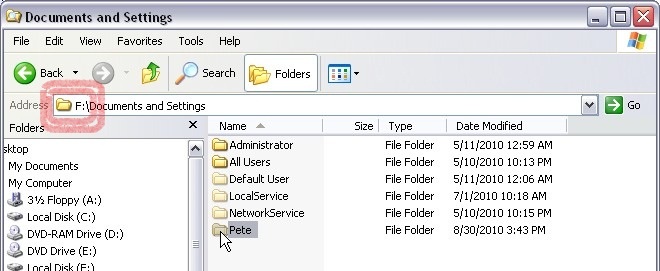
Say you’re trying to access folder “Pete” in the “F:” drive (an external drive, say, from an old computer).

00_and_14_pete_folder_highlited_ed

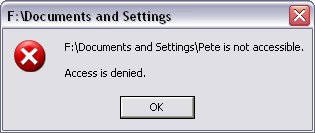
You might get an “Access is denied” error:

01_access_is_denied

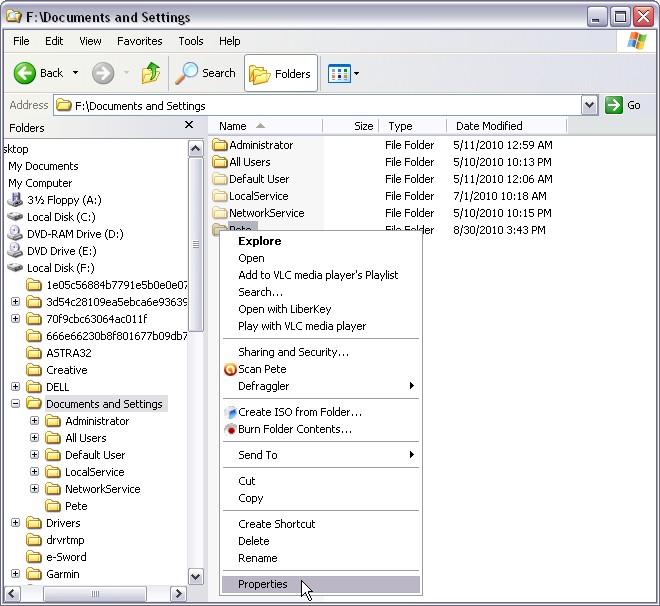
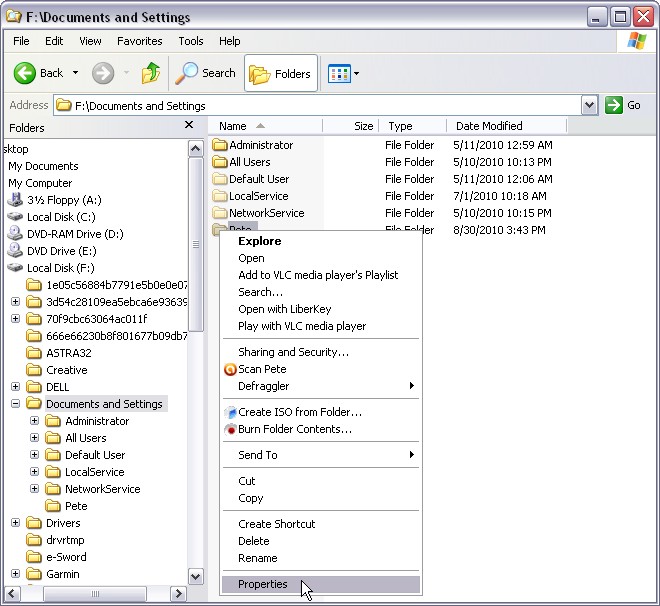
To fix it right click on the folder you want to access, and click “Properties”:
02_and_07_properties_right_click

The “Security” tab might be missing:

03_properties_no_security_tab

If the “Security” tab is missing, there’s an intermediate step. Click Tools -> Folder Options :

04_open_tools_folder_options_edited

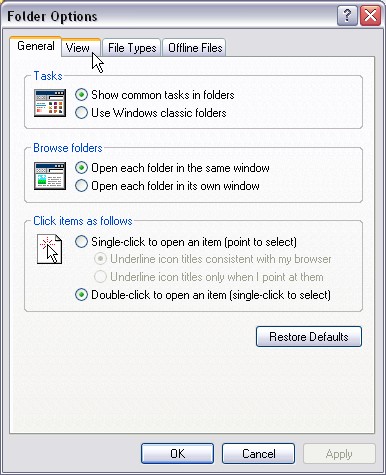
In the “Folder Options”, click the “View” tab:

05_folder_options_click_view

In the View tab, UNCHECK “Use simple file sharing (Recommended)”.  It may be “Recommended” but is it nevertheless sometimes not ideal.

06_uncheck_simple_file_sharing

Click “OK”.

Back to the folder you want to access (in the example “Pete”). Right click and select “Properties”:

07_and_02_properties_right_click - Copy

Now there should be a “Security” tab:

08_properties_with_security_tab

Click on the “Security” tab.

Note the Group or user names. If this is your problem, some will be missing, and some might be unrecognized or look strange. That “S-1-5-…” is a user from another PC (most likely the pc the drive came out of).  We want to add some here. Click “Add”:
09_properties_security_no_administrators_ed

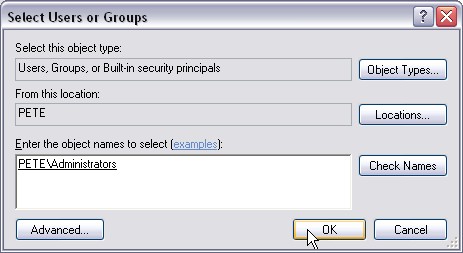
In the text box, add the user that needs access. On most Windows XP computers, it is sufficient to add “Administrators”. It is a user Group. Or, you might want to add your username on this computer. Or another user’s username. Click “Check Names”:

10_properties_security_add_type_administrators_check_names

If there’s no typo, Windows should change your text into a recognized username. In the example “PETE\Administrators”. In this case “PETE” is the computer name (happens to be the same as the user name and folder name in this example):

11_properties_security_add_type_administrators_name_found_click_ok

Click OK to get back to the Properties dialog box. Now the new username should be shown. Now look at the lower half, the Permissions. Some in the “Allow” column might be un-check’ed:

12_properties_security_with_administrators_click_full_control

If so, click the check box for “Full Control” to enable all permissions:

13_properties_security_with_administrators_with_full_control_on

Click ‘OK’ to return to the list of files.

14_and_00_pete_folder_highlited - Copy

Now double-click on “Pete” and you will have access! 😀
15_pete_folder_accessible

Hooray!


Entry Level Desktop PC Comparison

click to go directly to comparison table Loading


You can find PCs for as low as $299 and $399. These PCs use updated versions of old microprocessors, eg Pentium 4, or Centrino. Or they use laptop microprocessors–in a desktop. They’ll work just fine, but they’ll be noticeably slower.

For a while…

Such PC’s i predict will usable for 2 years (it’s 2013 now, so til 2015). By 4 years (ie in 2017), i predict they will become unusably slow, taking 2-4 minutes to boot, with surfing the web requiring a significant wait (30-60 seconds) per page.

OTOH, for about $500-$600 (or, $100-$200 more) you can get a 2G or even 3G Intel Core-i3, i5, or i7 processor or equivalent AMD processor. These CPUs should last 4-6 years (so until 2017-2019) and i would not expect to reach that grind-to-a-halt state until 6-8 years (2021).

So that’s like 2x the life for 25% more cost.

8/25/2014: i can find 4G i5’s for only as cheap as $750 at best. Thus that’s now $250-$350 more.

Example of processor variations from Intel

  • Intel Core i5-4430 – lower number, lower cost, lower perf
  • Intel Core i5-4570 – lower number, lower cost, lower perf
  • Intel Core i5-4670 – standard, neutral
  • Intel Core i5-4670S – ‘S’ means low power
  • Intel Core i5-4670K – ‘K’ stands for “unlocked” meaning hobbyists can “overclock” it

I don’t think the average user needs 2 of 5.25inch bays. All these low end PCs come with DVD-writers. Eventually, you are probably going to want a blu-ray reader, and/or writer. But this will be a $50-$100 upgrade plus installation 2-4 years from now. If you want to watch blu-ray movies now, you’ll have to make that upgrade immediately after purchasing.

USB 3.0 will be big soon. (update 2014: “soon” is now.) Almost all USB is 2.0 right now. USB 3.0 is available now and good to get now. There’s a faster version of 3.0 coming out very soon in 2013, but even today’s USB 3.0 is 10x USB 2.0.

The 11 Places I shop:

  • TigerDirect
  • newegg
  • Best Buy
  • Staples
  • CDW
  • hp.com
  • Walmart
  • Costco
  • OfficMax
  • OfficeDepot
  • JR.com
  • overstock.com
  • Beach Audio
  • b&h photo video

Here are the choices available from different vendors in this price range for this performance. Note date of price check for each PC listed.

Table Notes:


Loading

hilit
choice number
as_of
price
shipping
product
vendor
OS (home/pro 32/64bit)
processor
chipset
Motherboard
memory
memory pre nstalled
max memory
mem type, speed
mem slots total
disk
disk size
disk rpm
disk SATA speed (II 3Gb/s, III 6Gb/s
disk SSD
disk 3.25 bays total
disk 2.5 bays total
optical drive / 5.25 bays
optical drive (blu-ray rd/wr? / dvd-wr?)
5.25 bays total
usb 3.0
usb 3.0 – front
usb 3.0 – rear
usb 3.0 – top
usb 2.0
usb 2.0 – front
usb 2.0 – rear
usb 2.0 – top
ports slots net power
hdmi
dvi
pci slots
sata ports
Ethernet RJ45 100Mbps or Gigabit 1000Mbps
power supply
Warranty
Small Form Factor (SFF)?

Loading

Notes

    Processor

    The difference between 3rd Generation and 2nd Generation intel processors is not that great:
    EG,

    Feature 2nd Generation 3rd Generation
    Graphics HD 2000 HD 2500
    Graphics HD 4000
    Mem Speed 1333MHz 1600MHz 20% faster

    Office Depot & Office Max & Staples

    Office Depot had nothing <$600 with intel processor.

    Office Max had a p7-1410 and p7-1510 both have H61 chipset.

    Staples lowest price intel was envy h8-1430 $799

    10/24/2013: newegg didnt have any non-small-form-factor (SFF) hp pc’s. They had very few, but did have 400 or so refurbished hp pc’s.

    10/25/2013: OfficeMax only 2 refurbished PCs with windows 7 according to their search

    10/28/2013: completed search for win7 32bit on TigerDirect, newegg, best buy (with marketplace), walmart, staples:

    • Genuine Windows 7 Professional (17) (DONE)
    • Genuine Windows 7 Professional Upgradable to Genuine Windows 8 Pro (15) (DONE)
    • Genuine Windows 7 Professional Upgradable to Genuine Windows 8 Pro (English) (1) (DONE – was an AiO)
    • Windows 7 Professional (121) (abort-have to click on every one to see os version, too inefficient)

    office max, office depot, beachaudio (could not search) or is it beach camera? jr.com, next bhphotovideo.com?

    Example Decision : 2014-05-27:

    e1z75ut HP ProDesk 600 G1 Core-i54570 Q85 w8 alt
    f4j95ut HP ProDesk 600 G1 Core-i54570 Q85 w8.1 alt
    f4j92ut HP ProDesk 600 G1 Core-i54670 Q85 w8.1 alt
    f4k88ut HP ProDesk 600 G1 Core-i3 Q85 w8.1 alt
    e1z94ut HP EliteDesk 800 G1 Core-i5 Q87 w8? alt
    e1z89ut HP EliteDesk 800 G1 Core-i7 Q87 w8? alt

    Example Decision : 2013-12-10:

    core i5
    C6Z98UT TigerDirect $714.55 = $699.99 + Ground (2 to 6 days) [$14.56]
    C6Z98UT TigerDirect $730.94 = $699.99 + Second Day (2 days) [$30.95]
    C6Z98UT best Buy $722.30 = $722.30 + free shipping 6-9 days
    C6Z98UT CDW $753.00 = $729.99 + UPS Ground 2-3 business days $23.01
    HP D8C53UT Desktop PC, Core i7-3570 (really i5) Stpales $692.07 = $728.49 – $36.42 free shipping
    HP® D8C57UT 6300 i5-3470 Staples out of stock
    HP® D8C57UT 6300 i5-3470 newegg discontinued out of stock
    HP® D8C57UT 6300 i5-3470 jr out of stock
    HP® D8C57UT 6300 i5-3470 overstock.com $???.?? = $739.18 + ???? $??.?? BUT OUT OF STOCK
    HP® D8C57UT 6300 i5-3470 office depot $???.?? = $658.90 + ???? $??.?? BUT OUT OF STOCK
    HP® D8C57UT 6300 i5-3470 beach audio out of stock
    HP® D8C57UT 6300 i5-3470 CDW $700.00 = $676.99 + UPS Ground 2-3 business days about $23
    core i3
    D8C62UT Staples $639.99 = $639.99 + free shipping 3 days
    D8C62UT Office Depot $645.95 = $645.95 + free 3-5 days
    D8C62UT CDW $671.24 = $649.99 + UPS Ground 2-3 business days $21.
    D8C62UT $ = $ +
    D8C62UT $ = $ +
    D8C62UT $ = $ +
    D8C62UT $ = $ +

    Loading


    DRAM


    Chips and modules

    For use in Desktop computers, DDR, DDR2, DDR3 SDRAM is supplied in DIMMs (Dual Inline Memory Modules) with 240 pins and a single locating notch

    Laptop DDR, DDR2, DDR3 SO-DIMMs, sometimes written without the dash: SODIMM, have 200 pins and often come identified by an additional S in their designation. The “SO” in SODIMM stands for “Small Outline”.

    DIMMs are identified by their peak transfer capacity (often called bandwidth).

    Standard name Memory clock(MHz) = 1/cycle
    Cycle time(ns) = 1/clock Data rate(MT/s) = 2x clock Module name= rounded transfer rate Peak transfer rate(MB/s) = 8x Data Rate (8byes per Transfer) = 16x clock Timings[2][3](CL-tRCD-tRP) CAS latency(ns) = Timings * 1/2 * cycle
    DDR
    DDR-200 100 10 200 PC-1600 1600
    DDR-266 133⅓ 7.5 266⅔ PC-2100 2133⅓ 2.5-3-3 18.75
    DDR-333 166⅔ 6 333⅓ PC-2700 2666⅔
    DDR-400A
    DDR-400B
    DDR-400C
    200 5 400 PC-3200 3200 2.5-3-3
    3-3-3
    3-4-4
    12.5
    15
    15
    Standard name Memory clock(MHz) = 1/cycle
    Cycle time(ns) = 1/clock Data rate(MT/s) = 4x clock Module name= rounded transfer rate Peak transfer rate(MB/s) = 8x Data Rate (8byes per Transfer) = 32x clock Timings (CL-tRCD-tRP) CAS latency(ns) = Timings * 1/2 * cycle
    DDR2
    DDR2-400B
    DDR2-400C
    100 10 400 PC2-3200 3200 3-3-3
    4-4-4
    15
    20
    DDR2-533B
    DDR2-533C
    133⅓ 7⅓ 533⅓ PC2-4200* 4266⅔ 3-3-3
    4-4-4
    11¼
    15
    DDR2-667C
    DDR2-667D
    166⅔ 6 666⅔ PC2-5300* 5333⅓ 4-4-4
    5-5-5
    12
    15
    DDR2-800C
    DDR2-800D
    DDR2-800E
    200 5 800 PC2-6400 6400 4-4-4
    5-5-5
    6-6-6
    10
    12½
    15
    DDR2-1066E
    DDR2-1066F
    266⅔ 1066⅔ PC2-8500* 8533⅓ 6-6-6
    7-7-7
    11¼
    13⅛
    Standard name Memory clock
    (MHz)
    Cycle time
    (ns)
    Data rate
    (MT/s) = 8x clock
    Module name Peak transfer rate
    (MB/s) = 8x Data Rate (8byes per Transfer) = 64x clock
    Timings
    (CL-tRCD-tRP)
    CAS latency
    (ns)
    DDR3
    DDR3-800D

    DDR3-800E

    100 10 800 PC3-6400 6400 5-5-5

    6-6-6

    12 12

    15

    DDR3-1066E

    DDR3-1066F

    DDR3-1066G

    133⅓ 7 12 1066⅔ PC3-8500 8533⅓ 6-6-6

    7-7-7

    8-8-8

    11 14

    13 18

    15

    DDR3-1333F*

    DDR3-1333G

    DDR3-1333H

    DDR3-1333J*

    166⅔ 6 1333⅓ PC3-10600 10666⅔ 7-7-7

    8-8-8

    9-9-9

    10-10-10

    10 12

    12

    13 12

    15

    DDR3-1600G*

    DDR3-1600H

    DDR3-1600J

    DDR3-1600K

    200 5 1600 PC3-12800 12800 8-8-8

    9-9-9

    10-10-10

    11-11-11

    10

    11 14

    12 12

    13 34

    DDR3-1866J*

    DDR3-1866K

    DDR3-1866L

    DDR3-1866M*

    233⅓ 4 27 1866⅔ PC3-14900 14933⅓ 10-10-10

    11-11-11

    12-12-12

    13-13-13

    10 57

    11 1114

    12 67

    13 1314

    DDR3-2133K*

    DDR3-2133L

    DDR3-2133M

    DDR3-2133N*

    266⅔ 3 34 2133⅓ PC3-17000 17066⅔ 11-11-11

    12-12-12

    13-13-13

    14-14-14

    10 516

    11 14

    12 316

    13 18

    * Some manufacturers label their DDR2 modules as PC2-4300, PC2-5400 or PC2-8600 instead of the respective names suggested by JEDEC. At least one manufacturer has reported this reflects successful testing at a higher-than standard data rate[4] whilst others simply round up for the name.

    Note: DDR2-xxx denotes data transfer rate, and describes raw DDR chips, whereas PC2-xxxx denotes theoretical bandwidth (with the last two digits truncated), and is used to describe assembled DIMMs. Bandwidth is calculated by taking transfers per second and multiplying by eight. This is because DDR2 memory modules transfer data on a bus that is 64 data bits wide, and since a byte comprises 8 bits, this equates to 8 bytes of data per transfer.

    To clarify 2 similar acronyms:

    SRAM – Static RAM – this type of memory is used in various places in various chips in the PC (but not main memory, nor hard drisk drive main storage). It is used in caches and register files.

    SDRAM – Synchronous Dynamic RAM – this is the type of memory people mean when they say “my pc has 4GB of memory” (4GB is typical in 2013).

    Even tho they both start with ‘S’ one is Static and the other is not. In one case the ‘S’ means “Static” and in the other it means “Synchronous”.

    Another memory term:

    SODIMM – Small Outline DIMM. Ie laptop memory.

    Also begins with ‘S’ but in this case the ‘S’ means “Small”.

    2 other terms:

    “Volatile” means memory that is lost when power is applied. Examples are the memory (not the hard disk drive) inside your computer.)

    “Non-Volatile” means memory is still store when power is turned off. Examples are flash, as in usb drives. Eg usb drive retains its storage when unplugged.)

    Reference: Random-access memory on Wikipedia

    ERUNT vs Tweaking.com Registry Backup?

    Backing up the Registry is important, especially if you’re going to try a Controversial Registry Cleaner.

    ERUNT  (readme) sounds great as a registry backup because it backups up the actual FILES rather than the “contents” of your Registry.  Many programs backup the contents and to restore is awkward and might not work.  But with ERUNT, if your system does not boot (and thus many other backup/restore methods are unavailable) you can use the venerable COPY dos command to restore. Or the ERDNT.EXE in the backup dir can do it for you.

    But Tweaking.com (who’s “Windows Repair (All In One)” is recommended on techsupportalert.com and which I’ve used twice with splendid success) also has a Registry Backup: http://www.tweaking.com/articles/pagesprinter/tweaking_com_registry_backup_online_help.html

    It talks about 2 possible problems with ERUNT

    1. not backing up other users, just the current one.
    2. perhaps invalidating other programs’ handles (presumably to the registry)

    Quoting that Tweaking.com page:

    A lot of registry backup programs use the RegSaveKey API, such as ERUNT. When using the API you can only backup loaded registry files. [Only the current user’s registry NTUSER.DAT file is loaded, and so only it is backed up. -MM]

    Tweaking.com – Registry Backup uses the volume shadow copy service instead. This allows perfect backups of the registry files and all profiles on the system.

    Quote From Microsoft:

    “Applications that back up or restore system state including system files and registry hives should use the Volume Shadow Copy Service instead of the registry functions.”

    “Using RegSaveKey together with RegRestoreKey to copy subtrees in the registry is not recommended. This method does not trigger notifications and can invalidate handles used by other applications.”

    By using the Volume Shadow Copy instead of the RegSaveKey API this registry backup program is safer to use.

    Is Tweaking.com Registry Backup really safer than ERUNT, as its author claims? I’m not sure i *want* to trigger those notifications when i’m backing up the registry. That’s nobody’s business, right? But what about that “invalidate handles used by other applications”? I can see that might be a problem when *restoring* using RegRestoreKey–maybe that doesnt trigger the handle. But on save? Who needs to see that? Or is Micro$oft just trying to make sure *their* digital eyes see everything, even saves?

    On the 2nd issue, the backing up of other users registry files is valid, ERUNT even says so. http://www.larshederer.homepage.t-online.de/erunt/erunt.txt


    References

    How to Backup the Windows Registry at techsupportalert.com


    Program Uninstallers (Programs that uninstall other programs)


    “Uninstallers” are programs that uninstall other programs, like Windows “Add or Remove Programs” or “Programs and Features” does.  These programs are replacements for Windows “Add or Remove Programs” or “Programs and Features”.

    My fav is ZSoft Uninstaller.

    CAVEAT: ZSoft Uninstaller and another popular choice, “Total Uninstall” both have what’s called a “snapshot method.”  The “snapshot method” works by taking a picture of your registry and your files before and after the install of a program.  So, yes, you have to be alert to this before you install the program.  If your program is already installed, you have to use ZSoft’s more benign method, or Revo Uninstaller (which i also like and used for a while).

    I think Steven Avery at DonationCoder.com phrased it extremely well:

    1) One caution on the snapshot method.  Installs sometimes go ahead and install .Net components or Visual Basic or Visual C++ or maybe other semi-system components, perhaps Java as well.  A snapshot method would by default go back and try to undo those parts of the install, which can cause problems.

    My take — note carefully during the install whether anything like this occurs and if so — note this carefully where you won’t forget (perhaps a dummy folder name) — the simplest is uninstall in the more generic Revo-style way, rather than the snapshot way. Or if you do the snapshot method anyway, come up with your plan on how to handle this.  (e.g. Java is less of a problem because you could use JavaRa and then reinstall).  However I think you would normally simply not use the snapshot method if such external components are installed. Some of our accomplished Total Commander users might share with us their experiences on this aspect.

    That aside, ZSoft Uninstaller can be very helpful in cleaning up after an install.  Revo Uninstaller can do this too.  I ALWAYS check to make sure what I’m deleting is ok to delete.  When in doubt, i leave it.  So this feature is for somewhat advanced users.

    I also think Steven Avery (still at DonationCoder.com) gave a really good summary of the options available:

    Uninstaller roundup, with the emphasis on 3 solid in-depth programs.

    Revo Uninstaller, Total Uninstaller and ZSoft Uninstaller.

    And 7 more down below.  Half of the 10 are freeware.  Ok, on recount there are 11, 6 free, but we can consider FARR a special case. From the System Restore thread :

    Revo Uninstaller
    http://www.revouninstaller.com/  (no forum)

    is very good, far, far better than Windows Add/Remove (its a shell around Add/Remove, giving additional features and better searching.) And it is what I use, although I rarely uninstall.

    If you ever need to have “closest to 100%” uninstallation then you go to :

    Total Uninstall – powerful installation monitor and advanced uninstaller – $30
    http://www.martau.com/tu.php
    Forum
    http://www.martau.com/forums/
    Last Freeware Version
    http://www.aplusfreeware….tegories/util/uninst.html

    And the third major player.

    ZSoft – freeware
    http://www.zsoft.dk/index/software_details/4
    Forum
    http://forum.zsoft.dk/
    Zsoft Uninstaller  (10/2007)
    http://www.donationcoder….m/index.php?topic=10333.0

    Here are solid discussions of the three, with some other mentions.

    http://forum.piriform.com…index.php?showtopic=15858
    Total Uninstall or Revo Uninstaller, Which is best (which should i keep) (Piriform Forums)

    http://www.techsupportale…-program-un-installer.htm
    Best Free Program Un-installer – Gizmo

    http://www.lifehacker.com…windows_systems_on_the_g/
    Clean Windows Systems on the Go with Revo Uninstaller Portable

    http://www.lifehacker.com…_crapware_from_your_pc-2/
    ZSoft Uninstaller Removes Crapware from Your PC

    (Note the developer’s informative comments at bottom, acknowledging lacks as well as new features. I’ll chop ’em up.)

    “Total Uninstall … takes snapshots before and after …the best way … ZSoft Uninstaller can do this too … Revo searches for leftovers .. the current version of ZSoft Uninstaller doesn’t do this …the newest beta … does have this feature – search the desktop, start-menu, send-to menu, application data folder, ‘application main folder’, and registry for leftovers (if you tell it to)”

    The problem with Total Uninstall (which I used awhile) and any before-and-after-snapshot style is that it can make the installation far more cumbersome.  Who wants to do that for anything but the most complicated installs ? (Maybe some sort of Visual Studio or Dreamweaver or a complicated virtual sandbox pseudo-defense system.)  Or an install that you really have doubts about.  (Does TU work very well in a simple no-snapshot mode ?  Dunno, there are a couple of reviews on onsite and here and there.) With Revo and ZSoft around for free .. most don’t want to purchase a program that is only marginally better.  However, since you may only want a Total in specialty cases, the humoungous installs,  it might be good to at least have the last freeware Total version ready, or use ZSoft snapshot.

    Note that ZSoft is used in both modes, so if he is truly enhancing his “clean-up after” mode, as in the comments above, ZSoft becomes a very interesting freeware alternative.  I haven’t checked for any comparisons after his new release went the post-remove cleanup route.  Maybe in his forum there are some discussions.

    In here I have included most of the dedicated Donationcoder uninstaller threads for a couple of years, but there are some goodies around 2005-2006, especially about Total Uninstaller.

    Seven more with solid reps:

    farruninstall – FarrUninstall plugin for Find and Run Robot
    http://code.google.com/p/farruninstall/
    FARR Uninstall Plug
    http://www.donationcoder….um/index.php?topic=9246.0

    MyUninstaller – Nirsoft (freeware)
    http://www.nirsoft.net/utils/myuninst.html
    My Uninstaller – Donationcoder 2008/02
    http://www.donationcoder….m/index.php?topic=12406.0
    Remove Item In “Add/Remove Programs” 03/2009
    http://www.donationcoder….m/index.php?topic=17637.0

    Absolute Uninstaller – Glarysoft – freeware
    http://www.glarysoft.com/absolute-uninstaller/

    Safarp – Open Source – Freeware (2005) – lite, fast
    http://wistinga.online.fr/safarp/
    Forum – http://wistinga.sourceforge.net/forums/  some activity 2007-2008

    Advanced Uninstaller Pro – $40
    http://www.innovative-sol…com/uninstaller/index.htm
    Forum
    http://www.innovative-sol…92f287f4f&showforum=4

    Your Uninstaller – $40 (bundle deal some like)
    http://www.ursoftware.com/product/uninstaller/
    Your Unistaller 2008 just released.
    http://www.donationcoder….m/index.php?topic=11254.0

    Uninstall Tool – $25
    http://www.crystalidea.co…=show_page&name=utool

    Smarty Uninstaller – $20
    http://www.winnertweak.com/uninstaller/

    ================================================================

    As I rethought this, I made my own decision (sort of a recommendation).  Everyone should consider having two programs handy.  One like Revo for the basic uninstall situation.  Revo is the unqualified leader, ZSoft is just trying now to be right there in the mix, and a bunch of others are definitely very good, with their own style and advantages, if you are using them and happy — clap your hands. You can stick with them fine.  Even Windows Add/Remove alone is .. usually .. sometimes .. ok.  Most of this is not mission critical.

    And in the back holster we have the snapshot program.
    Which generally is either :

    Total Uninstall $30
    Total Uninstall Last Free Version
    ZSoft

    (Putting aside some possible techie possibilities that are less automated like RegShot, that might be helpful, at least for visibility.  And  probably for some people the two programs will be one.  ZSoft being the only one, perhaps, with both snapshot for the toughies .. and post-dinner cleanup for the regular .. a feature which many like .. and also free.)

    You may use this snapshot install-uninstall once every few months, or never, but when you get that humoungous program that you are taking on a demo, or that problematic program that you want to try out .. the one that is known to leave hundreds of registry entries and little .dlls everywhere .. then you load up TU or ZSoft !

    So we have successfully bifurcated the uninstalling suggestions !

    Shalom,
    Steven Avery

    « Last Edit: April 02, 2009, 01:00:24 PM by Steven Avery »



    References

    “Uninstaller Roundup – Revo – Total – ZSoft & the less magnificent seven” at DonationCoder.com

    “Best Free Program Uninstaller” at techsupportalert.com

    How to uninstall Symantec Endpoint Protection v11 WITHOUT the uninstall password

    Symantec Endpoint Protection (SEP) aims to protect very, very well.  To that end, it embeds itself into the Operating System very deep, and in many places, and in many ways.  Unfortunately, this slows down your computer, especially if it’s old, eg an old Windows XP computer.

    It is also why SEP comes with an uninstall password.

    Note that SEP is usually installed by a business who will install a central server (SEPM) and then regular SEP on all their clients (laptops, desktops).  So let’s say your company lets you keep your laptop.  Well how are you going to get that SEP off there?  It wont keep working forever.

    There are various ways i found on the net.

    Before doing anything make an image of your hard drive, so you can restore (Important!) if things go horribly wrong

    Here are methods i found:

    1. Try the default password symantec.From http://www.symantec.com/connect/articles/how-uninstall-symantec-endpoint-client-if-uninstall-password-place
    2. HKEY_LOCAL_MACHINE\SOFTWARE\Symantec\Symantec Endpoint Protection\AV\AdministratorOnly\Security\UseVPUninstallPassword

      Set to 0 to disable.

      From: http://www.symantec.com/connect/forums/uninstalling-endpoint-without-password

    3. HKEY_LOCAL_MACHINE\SOFTWARE\Symantec\Symantec Endpoint Protection\SMC

      Change the value for SmcGuiHasPassword from 1 to 0

      From: http://www.symantec.com/connect/forums/uninstalling-endpoint-without-password

    4. HKEY_LOCAL_MACHINE\SOFTWARE\Symantec\Symantec Endpoint Protection\SMC

      delete the smcexit key

      From http://www.symantec.com/connect/articles/how-uninstall-symantec-endpoint-client-if-uninstall-password-place

    5. HKEY_LOCAL_MACHINE\SOFTWARE\Symantec\Symantec Endpoint Protection\SMC

      look for smcinstdata key; delete it

      From http://www.symantec.com/connect/articles/how-uninstall-symantec-endpoint-client-if-uninstall-password-place

    6. Manually change the Policy:  Click HELP AND SUPPORT -> TROUBLESHOOT -> Export the Policy from Policy Profile to an .xml file.
      Edit the .xml file to set

      AdminPassword ExitNeedPassword, UINeedPassword, ImportExportNeedPassword, UninstallNeedPassword

      Set the Value as “0”.  Re-import.

      from here: http://www.symantec.com/connect/blogs/remove-smc-password-without-applying-policy-server

    7. cmd line smc -stop to stop the service after removing password
    8. When the password comes up, use Task Manager -> Processes (or Sysinternals Process Explorer) to kill the msiexec.exe process.From: http://helpdeskgeek.com/help-desk/uninstall-symantec-endpoint-protection-without-a-password/


    References:

    Methods for uninstalling Symantec Endpoint Protection


    How to map disk drive names in Device Manager to volume letters like C: E: F: G:

    When you go into Device Manager and click on Disk drives you see entries like

    Maxtor 7Y250M0

    WD6400AAKS-00E4A0


    [FYI all those “0” are zeros -MM]

    But it doesnt tell what driver letter, eg C:, D:, E:, F: etc it is.

    There happens to be an excellent question and answer about this (by the same person) on answers.microsoft.com.

    The short answer is there’s a “Volumes” tab in disk drive device properties.

    The long answer is:

    1. Once you’re already in Device Manager with Disk drives expanded,
    2. Right-click on a disk drive device and select “Properties”.
    3. Click the “Volumes” tab
    4. Click the “Populate” button.
    5. The drive letter like F: should appear under the “Volume” column in the lower half of the dialogue box.

    That’s the drive letter for that device.

    Or, you can do it from “My Computer” or “Windows Explorer” :

    1. Double click on “My Computer” or Start -> Programs -> Windows Explorer or Start -> Run -> explorer
    2. Navigate to “My Computer” or “Computer” (showing the list of drives with their drive letters)
    3. Right-click on a drive (it doesnt matter which one), and select “Properties”
    4. Select “Hardware” tab
    5. Click on one of the drive device names (you have to do this for every name, in turn)
    6. Click the “Properties” button (yes you’re now in the Properties of the Properties–welcome to Windows)
    7. Click the “Volumes” tab
    8. Click the “Populate” button.
    9. The drive letter like F: should appear under the “Volume” column in the lower half of the dialogue box.

    If you’re trying to map a particular drive letter, like C: to its device name, you will have to keep repeating these steps from step 5, trial and error fashion, for each drive device name until you find the one that has volume C:.

    I’ll post pictures here of each step if i get the time.

    For reference, “jabloomf’s” concise posts from answers.microsoft.com :

    Question

    jabloomf asked on 2/12/2010 3:57:32 AM

    Matching drive Letter with physical drive

    I know there must be a simple way of doing this. I have 5 SATA drives on my Windows 7 system. The boot drive (C:) and another drive (E:) are 150 GB WD Raptors. The two Raptors are connected to the mobo’s [motherboard’s] SATA1 and SATA4. But how can I tell whether the C: drive is on either SATA1 or SATA4? All in can see in the Device Manager is the drive S/Ns. In disk management, all I can see are the drive letters and the drive type, but not the S/N. I know that I could power down, unplug one of the drives from the mobo and see what happens when I reboot, but I was wondering if there was some way to find out from the OS.

    The only other way I decided that it might be possible to find out is to use the BIOS to examine the S/Ns and try booting from each drive using the BIOS and see what happens.

    And his answer:

    Answer

    jabloomf replied on

    Thanks, but I figured it out a different way, in case anyone is interested. You click on the drive Properties from the Windows Explorer. Then you click on the Hardware tab and click on the drive caption. For a 150 GB WD Raptor the caption (or name) looks something like:

    WDC WD1500AHFD000RAR4 ATA Device

    Then click the Properties button and then the Volumes tab. Then populate the Volumes and you have a match of the drive caption and the drive letters. The drive caption is also shown in the BIOS, so you can confirm that you’ve matched the correct physical drive with both the drive letters and the SATA port.


    Is ‘RegSeeker’ a good, safe tool?

    The whole issue of Registry Cleaners is controversial.  ‘RegSeeker’ is one such tool.  On whether it’s safe, i will quote an expert who’s opinion i trust [from a techsupportalert.com forum entry entitled “WinUtilities 9 Free]:

    Another good one is RegSeeker. You can comfortably wipe out a whole OS with this one without even trying. Not quite as effective as Darik’s Boot, but you get the picture

    This is their slogan:
    “RegSeeker is a perfect companion for your Windows registry”

    What they don’t say is that after using it you likely won’t have any registry left for it to be friends with

    MidnightCowboy

    RegSeeker might have its uses, but its danger outweighs its usefulness for all but expert users.

    Are “Registry Cleaners” safe? Effective?

    You can almost view “Registry Cleaners” as the FDA views products.

    For Medicine the FDA requires the product to be both safe AND effective. “Effective” means it has to actually help.

    For Supplements the FDA only requires the product to be safe.  What this rule means is that according to the FDA companies can legally sell sugar pills (ie, supplements that do nothing) as long as they are safe.

    And with Registry Cleaners both questions are relevant

    • safety
    • effectiveness

    Safety

    As for safety, let me quote an expert who’s opinion i trust.  He is, as you’ll see, very safety conscious.  [from a techsupportalert.com forum entry entitled “WinUtilities 9 Free]:

    I have never used any such combo utilities like the ones mentioned on this thread, so I don’t have any idea about them. I have never used registry cleaners, and I don’t intend to use them in the future too. I always see registry cleaning as a process, which has quite a lot of risk involved [emphasis mine -MM], and I think users would be better off without using it.

    I like to keep my system clean though, and I don’t like useless things lying around. Once, I had just out of curiosity used CCleaner registry cleaner tool, just to analyze and see what it finds. There were many entries there, for which the corresponding program had been uninstalled. I was tempted to use the cleaner that time, but I decided the risk would not be worth it.

    For system tune up, I use CCleaner everyday (without the registry cleaner). I sometimes use disk defragment, but the frequency of using is very low. I sometimes use registry defrag, but only very rarely.

    I know MC [another expert i trust -MM] does not use registry cleaner, and advises against it. He does not even use a file cleaner like CCleaner .

    Amongst file cleaners too, I only trust CCleaner. I find it very safe. All other file cleaners, look like CCleaner anyways, and some of them can bring down your system, by cleaning important system files.

    For average users, I would advise not using registry cleaner at all. Using CCleaner, and disk defragment would be enough. I haven’t used any combo utilities till now, so I don’t know what all is there in them… but I think individual software are there, which perform the job better in that category, like junk cleaning, or managing start up programs.

    __________________
    Anupam


    Effectiveness

    And yet, here is another post that represents several users’ experience [from a comment to a techsupportalert.com article entitled “Best Free Registry Cleaner”]:

    So I tried [Wise Registry Cleaner and] my whole system snapped to life!

    I have no doubt that this kind of result is possible.  It is not at all guaranteed.  There are many things that can slow down a system.  But one of the things is “hooks” installed that point to programs that dont exist.

    Eg you might install Some Cool Program, and when you do, it auto-detects that .xyz file is being used, and does something useful.  But if you uninstall Some Cool Program, then the hook that detects .xyz file might accidentally left behind.  Then every time you access .xyz file, Windows spends time trying to find that program, and it doesnt exist.  This can take noticeable time.  Small increments of time that happen repeatedly until you notice that your system is responding slowly.

    So a SAFE Registry Cleaner can speed up your system, if you happen to be suffering from that particular problem.

    Better SAFE than fast, however.

    Before trying a Registry Cleaner, backup your registry, or, to be even safer, get a second disk (another computer, 2nd disk installed, external drive) and use my fav Paragon Backup & Recovery Free to make a backup image of your hard drive. Find that program at techsupportalert.com’s article entitled “Best Free Drive Imaging Program”